A few years ago, I received an email that instantly made my stomach drop.
Someone had attempted to log into one of my online accounts from a location I’d never visited. At first, I assumed it was a scam email. But after checking my account activity, I realized the login attempt was real.
Fortunately, nothing happened.
Why?
Because I had enabled two-factor authentication (2FA).
The attacker knew my password, but they couldn’t get past the second layer of security. That experience completely changed how I think about online safety.
Today, passwords alone are no longer enough. Data breaches, phishing attacks, and password leaks happen regularly. Even strong passwords can be stolen or guessed. That’s where two-factor authentication comes in.
In this guide, I’ll explain exactly what two-factor authentication is, how it works, why cybersecurity experts recommend it, and how you can start using it today to better protect your digital life.
Understanding Two-Factor Authentication
What Is Two-Factor Authentication (2FA)?
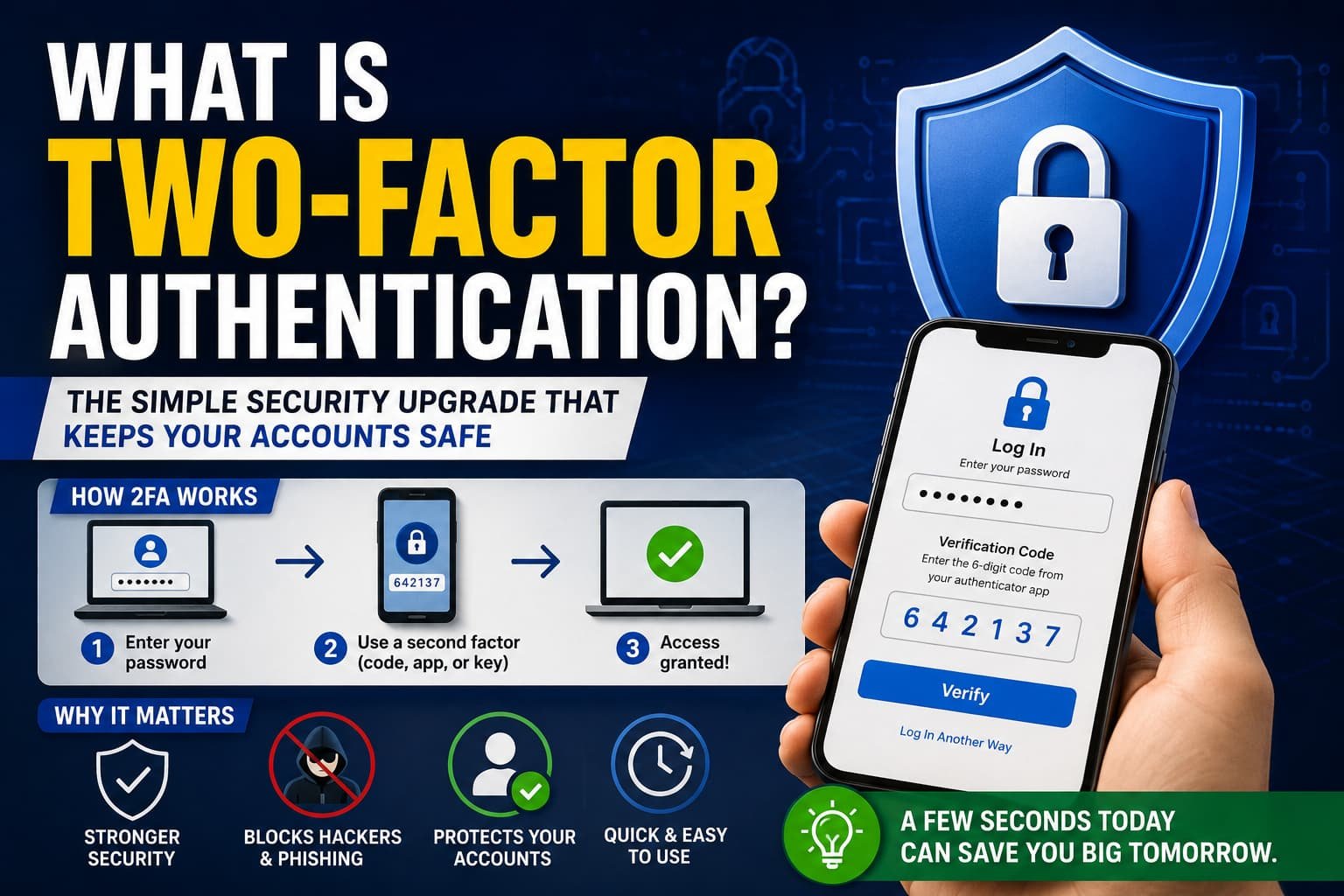
Two-factor authentication (2FA) is a security process that requires users to provide two different forms of identity verification before accessing an account.
Instead of relying solely on a password, 2FA adds a second verification step.
Think of it like locking your house with two separate locks instead of one.
Even if someone gets your password, they still need access to the second authentication factor to log in successfully.
This extra layer dramatically improves account security.
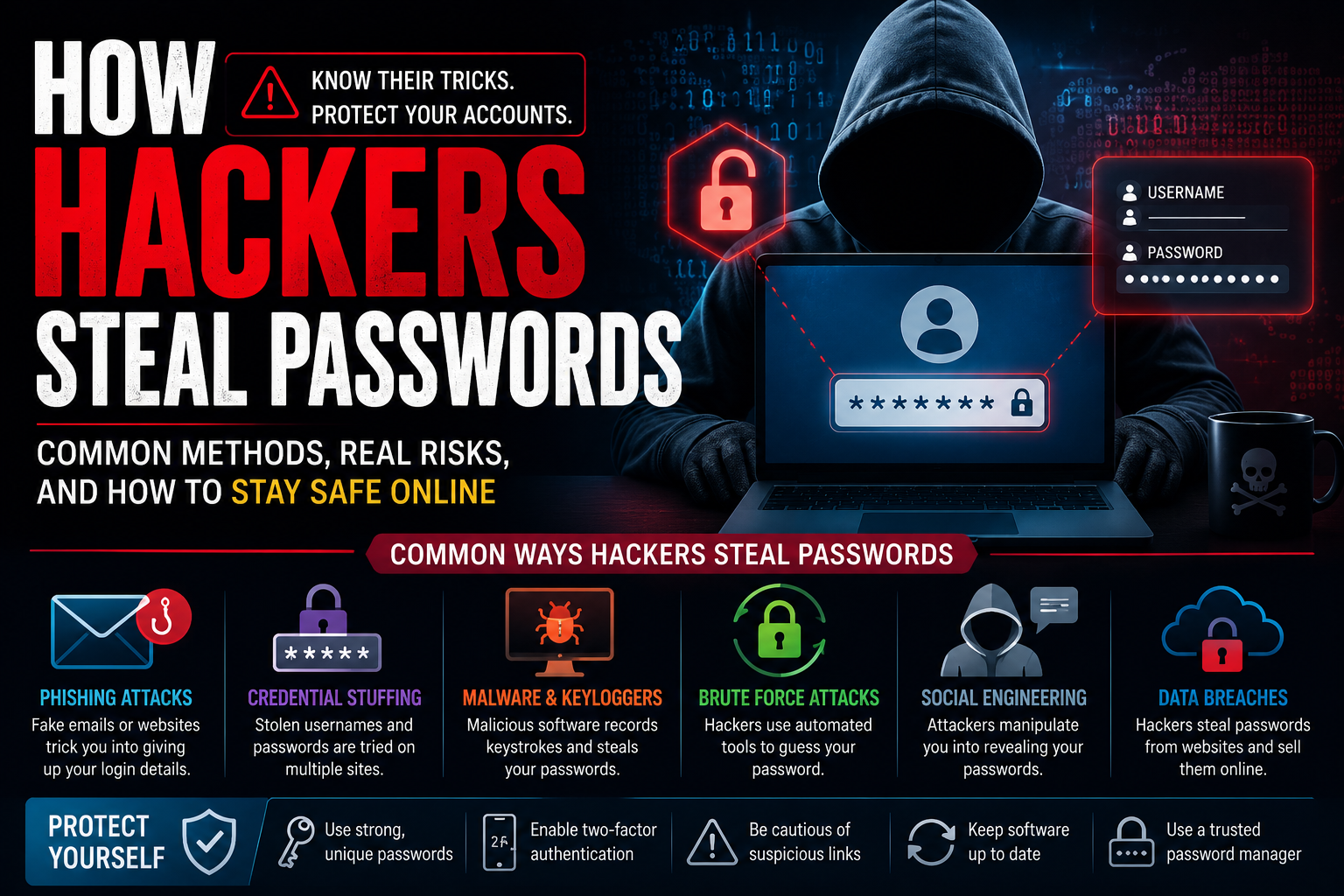
Read More: How Hackers Steal Passwords
The Three Main Authentication Factors
Security experts generally divide authentication into three categories.
1. Something You Know
This includes:
- Passwords
- PIN codes
- Security questions
Example:
Your email account password.
2. Something You Have
This includes:
- Smartphones
- Security keys
- Authentication apps
- Hardware tokens
Example:
A six-digit verification code sent to your phone.
3. Something You Are
This includes biometric verification such as:
- Fingerprints
- Facial recognition
- Retina scans
- Voice recognition
Example:
Using Face ID on your smartphone.
Two-factor authentication combines two different categories.
For example:
- Password + verification code
- Password + fingerprint
- Password + security key
This combination makes unauthorized access much more difficult.
How Two-Factor Authentication Works
Let’s look at a simple real-world example.
Imagine you’re logging into your Gmail account.
Step 1
Enter your email address and password.
Step 2
Google requests additional verification.
Step 3
You receive a code through:
- Google Authenticator
- SMS text message
- Security key
- Google Prompt
Step 4
Enter the code or approve the request.
Step 5
Access is granted.
Even if a hacker steals your password, they still need the second verification factor.
Without it, they’re locked out.
Why Two-Factor Authentication Is So Important
Passwords Are Easier to Steal Than Ever
When I first started using the internet, creating a strong password felt like enough.
Today, things are different.
Cybercriminals use:
- Data breaches
- Phishing emails
- Credential stuffing
- Malware
- Social engineering
Millions of passwords are exposed every year.
Even responsible users can become victims.
This is why cybersecurity professionals consistently recommend enabling 2FA wherever possible.
It Protects Your Most Valuable Accounts
Two-factor authentication is especially important for:
- Email accounts
- Banking apps
- Social media accounts
- Online shopping accounts
- Cloud storage services
- Business accounts
Imagine losing access to:
- Your photos
- Work documents
- Online banking
- Social media profiles
2FA helps reduce that risk significantly.
Common Types of Two-Factor Authentication
Not all 2FA methods offer the same level of protection.
Let’s compare the most common options.
SMS Verification Codes
This method sends a code via text message.
Example:
Your bank sends a six-digit code to your phone.
Pros
- Easy to use
- Widely supported
- Familiar to most users
Cons
- Vulnerable to SIM-swapping attacks
- Relies on mobile service
In my experience, SMS authentication is better than nothing, but stronger alternatives exist.
Authenticator Apps
Popular apps include:
- Google Authenticator
- Microsoft Authenticator
- Authy
These apps generate temporary codes that refresh every 30 seconds.
Pros
- More secure than SMS
- Works offline
- Free to use
Cons
- Requires setup
- Losing your device can complicate recovery
Personally, this is my preferred option for most accounts.
Push Notifications
Services such as Google and Microsoft often use push approvals.
Instead of entering a code, you simply tap:
“Approve”
or
“Deny”
Pros
- Fast and convenient
- User-friendly
Cons
- Can be vulnerable if users approve requests carelessly
Hardware Security Keys
Examples include:
- YubiKey
- Google Titan Security Key
These physical devices plug into your computer or connect wirelessly.
Pros
- Extremely secure
- Resistant to phishing attacks
Cons
- Additional cost
- Easy to misplace
Many security professionals consider hardware keys the gold standard for account protection.
My Experience Switching to 2FA
I’ll be honest.
When I first heard about two-factor authentication, I thought it sounded annoying.
Another code?
Another login step?
I was skeptical at first.
After enabling it across my most important accounts, however, I quickly realized the inconvenience was minimal.
The login process usually adds only a few seconds.
The peace of mind is worth far more than that tiny amount of extra effort.
Now I enable 2FA on nearly every account that offers it.
How to Set Up Two-Factor Authentication
Most services follow a similar setup process.
Step 1: Open Account Security Settings
Look for:
- Security
- Privacy
- Account Protection
sections.
Step 2: Find Two-Factor Authentication
It may be labeled:
- 2FA
- MFA (Multi-Factor Authentication)
- Two-Step Verification
Step 3: Choose a Verification Method
Select:
- Authenticator app
- SMS
- Security key
Step 4: Follow Setup Instructions
Most platforms provide a QR code for authenticator apps.
Simply scan it and save your backup codes.
Step 5: Test the Setup
Log out and log back in to confirm everything works properly.
Common Problems and How to Avoid Them
Losing Access to Your Phone
This is one of the most common concerns.
Solution:
Always save your recovery codes.
Store them somewhere secure.
Changing Devices
Before replacing your phone:
- Transfer authenticator accounts
- Export backup codes
- Verify recovery methods
Getting Locked Out
Many users forget to set up backup options.
Always configure:
- Recovery email
- Backup codes
- Secondary device
These precautions can save hours of frustration later.
Two-Factor Authentication vs Multi-Factor Authentication
Many people use these terms interchangeably.
However, there is a difference.
Two-Factor Authentication (2FA)
Requires exactly two factors.
Example:
- Password
- Authentication code
Multi-Factor Authentication (MFA)
Uses two or more authentication methods.
Example:
- Password
- Fingerprint
- Security key
All 2FA is MFA, but not all MFA is limited to two factors.
Quick Tips for Better 2FA Security
If you’re enabling two-factor authentication today, keep these tips in mind:
- Use an authenticator app instead of SMS when possible.
- Save backup recovery codes.
- Protect your email account first.
- Enable 2FA on financial accounts immediately.
- Consider hardware security keys for critical accounts.
- Never approve unexpected login requests.
- Review security settings regularly.
Frequently Asked Questions
Is Two-Factor Authentication Really Necessary?
Yes.
Even strong passwords can be stolen through data breaches or phishing attacks. Two-factor authentication adds an additional layer that significantly improves security.
Can Hackers Bypass Two-Factor Authentication?
While no security measure is perfect, properly configured 2FA makes attacks far more difficult. Authenticator apps and hardware security keys are generally more secure than SMS verification.
Which Two-Factor Authentication Method Is Best?
For most users, authenticator apps such as Google Authenticator, Microsoft Authenticator, or Authy provide an excellent balance of security and convenience. For maximum protection, hardware security keys are often considered the strongest option.
Final Thoughts
Two-factor authentication is one of the simplest and most effective security upgrades available today.
In my experience, it offers an enormous security benefit while requiring very little effort. Whether you’re protecting your email, banking information, social media accounts, or business data, enabling 2FA can dramatically reduce the chances of unauthorized access.
The digital world isn’t getting safer on its own. Cyber threats continue to evolve, and passwords alone are no longer enough. Fortunately, adding a second layer of verification takes only a few minutes and can prevent major headaches later.
If you haven’t enabled two-factor authentication yet, consider this your reminder. A few extra seconds during login could save you from a much bigger problem in the future.